Legend, symbols and manual placement
Legend items define the device classes used by detection, manual placement, assemblies and reports. A good item combines a stable class name with a tight, representative visual example.
Prerequisites and permissions
UI path: project → Plan review → the Legend symbols (B) tool
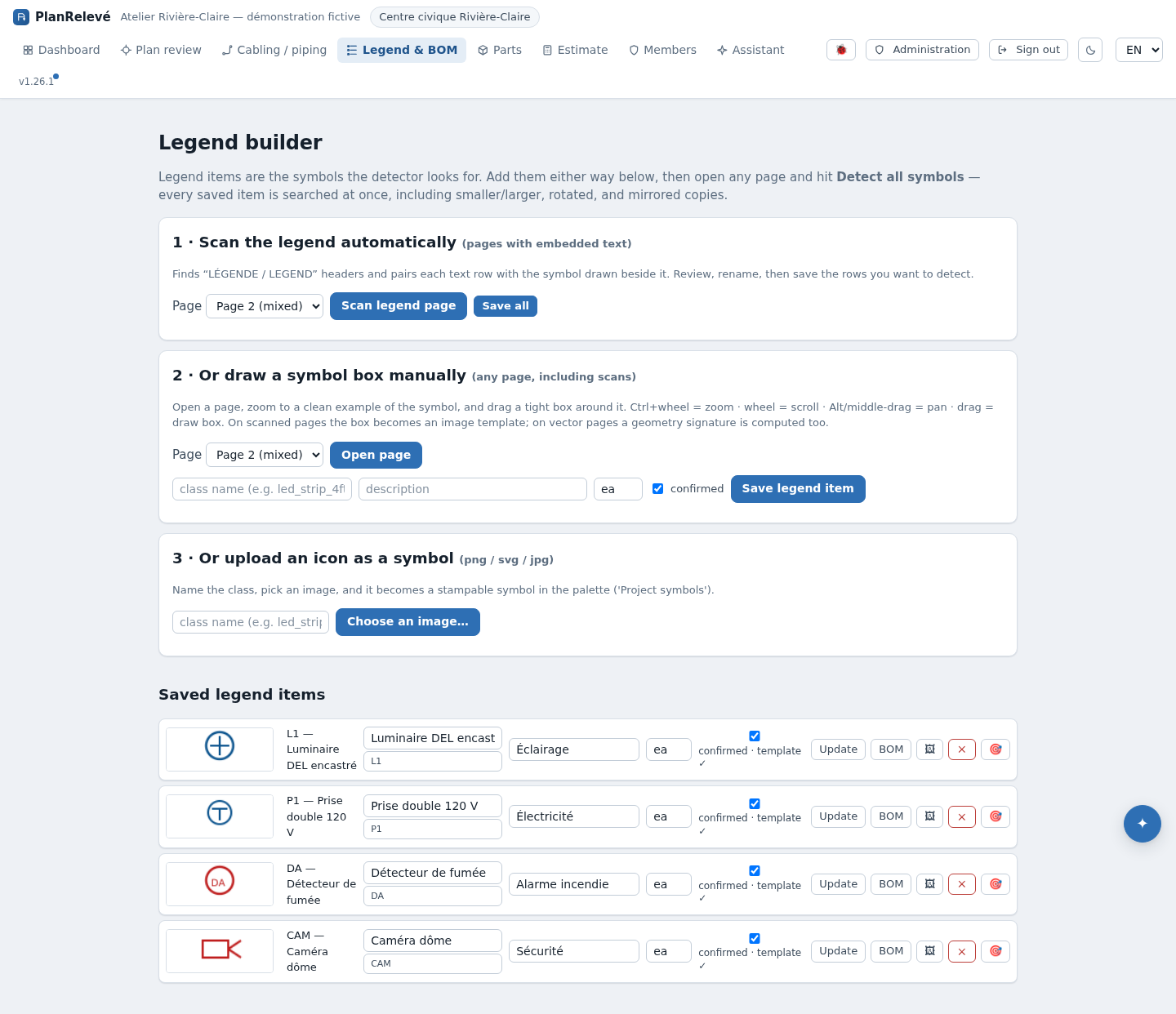
The legend is no longer a page of its own: it is a tool on the plan review rail, working on the sheet already open. The old /projects/<id>/legend link still works — it redirects to the review page with the tool armed.
Viewing the legend requires project access. Scanning, saving, editing, confirming or deleting items requires project editing permission.
Decide on class naming before bulk work. Smoke detector and Smoke Detector can become separate classes; use one canonical spelling and put explanatory text in Description.
Scan an existing legend
- Open the sheet that carries the legend and arm Legend symbols. The scan targets the sheet on screen, so there is no page picker.
- Select Scan this sheet.
- Review the proposed rows. Check the label, symbol crop and class name; remove captions or adjacent linework from the interpretation.
- Correct class/description values as needed.
- Select only the valid rows.
- Save them one at a time, or choose Save all to send every remaining row in one operation.
The scan stage is a proposal. It does not persist every detected row automatically. A successful bulk save creates individual legend items; one bad row should not force you to accept the rest. After saving, inspect each item's visual preview and confirmation state.
Scanned legends can be harder when rows are faint, skewed, densely ruled or have no embedded text. Add important classes manually instead of repeatedly widening thresholds.
Add a symbol from the plan
Use this when there is no legend or the generic legend symbol differs from real plan instances.
- Open any page, including a scan, and select Add a symbol by drawing.
- Draw a tight Symbol box around one clean occurrence.
- Enter Class name and Description; select a suitable unit such as
each. - Confirm the item if it is ready for takeoff.
- Save.
The box becomes a geometry signature on vector pages or a reusable crop/template when exact vector geometry is unavailable. Avoid including room text, leader lines, walls or neighbouring devices. If the plan uses several rotated or graphic variants, add actual plan-side examples from Plan review.
Built-in symbols and icon upload
For manual placement, choose from the built-in symbol library or assign a catalogue symbol key. The palette includes favourites and recently used items stored in that browser, plus Project symbols created from your legend.
You can also upload an icon as a visual project symbol. Use a small, clean PNG, JPG/JPEG, WEBP or GIF. The current safe upload endpoint validates and re-encodes raster images; an SVG may appear in a browser file picker but is not accepted by the server. Uploaded art is useful for consistent stamps, but it does not by itself guarantee that automated matching can find the original PDF mark.
Confirmation and matching readiness
A legend item can be saved but unconfirmed. Confirmed legend items are the classes intended for normal detection and material mapping. Confirmation does not add any occurrences to the count.
For automated matching, the most useful item has at least one of:
- an exact vector signature;
- a tight image/template crop;
- one or more plan-side exemplars;
- a recognized built-in symbol association.
If detection reports a weak class or no usable visual signature, return here or add an exemplar from the review page.
Use actual detections as examples
UI path: project → Plan review
- Select exactly one good occurrence and choose Save as a legend symbol… to create/update a project symbol from that box.
- Right-click a single occurrence and choose Use as example for class when the legend art is generic but the plan uses a different block.
- A manually drawn plain box can be converted to a project symbol through Make project symbol where offered.
Examples are class-specific. Choose clean occurrences rather than false positives. After adding examples, rerun detection for the affected page/class scope and review the replacement population.
Manual placement states
In Plan review:
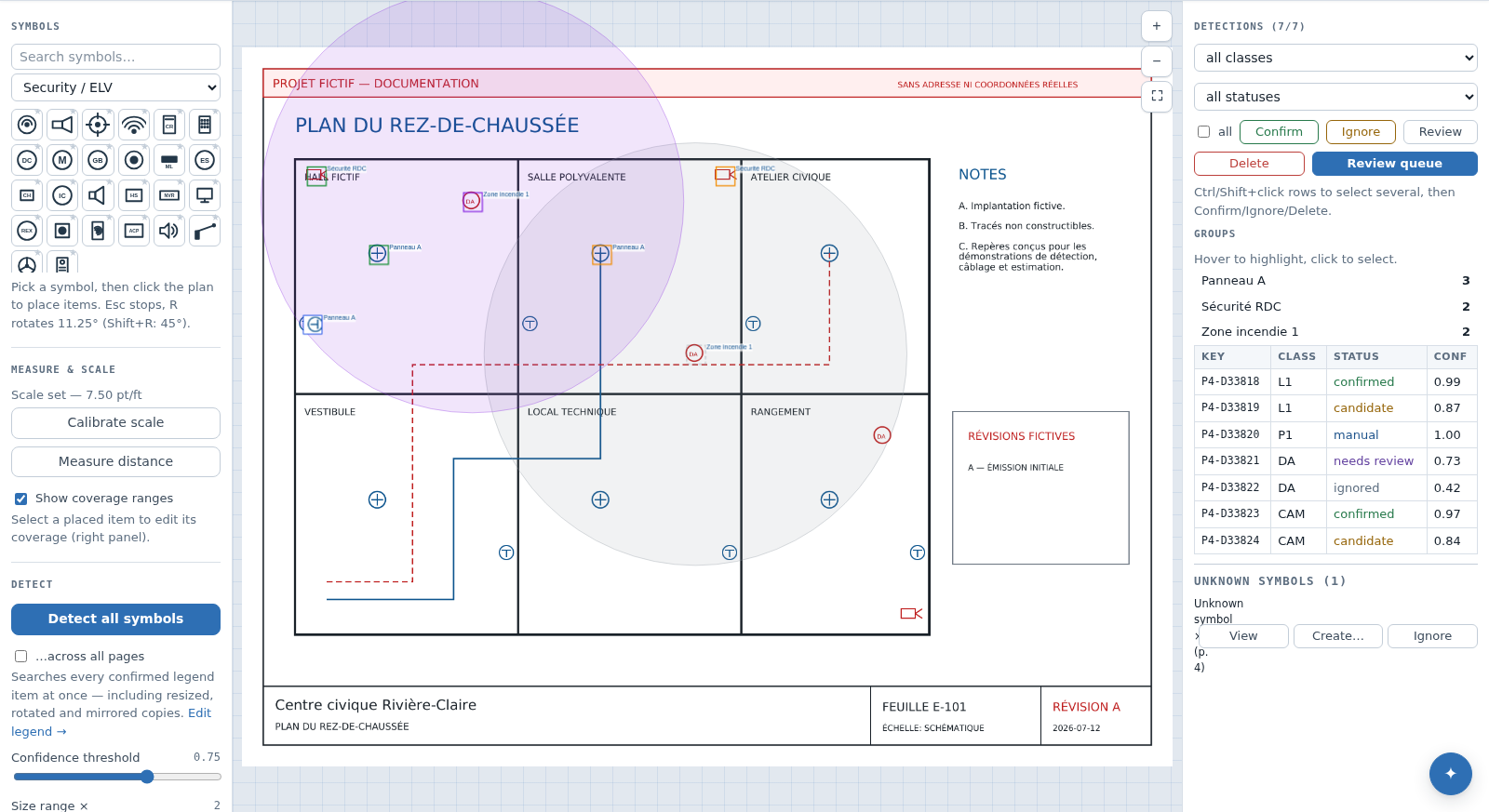
- Choose a built-in/project symbol in the palette.
- Rotate before placement with
R(11.25°) orShift+R(45°). - Click the plan to stamp it.
- The stamp is saved as a candidate in the review-first flow; confirm it after checking its class and position.
Alternatively choose a class and Draw a box. A drawn box is saved with manual status and enters reviewed counts immediately. Both are explicit user actions, but their status semantics differ.
Rename or delete with care
Class names connect detections and assemblies. Use the application class-rename operation (including AI Copilot's planned Rename class everywhere when approved) rather than creating near-duplicates. Before deleting a legend item, verify whether its detections, examples or assembly recipe are still needed. Deleting a definition does not make an issued estimate self-explanatory.
Troubleshooting
- Scan found labels but no useful symbols: add from a vector plan occurrence or a high-resolution crop.
- Many false positives: tighten the source box, add plan-side examples, increase matching strictness and keep auto-confirm off.
- Rotated symbols missing: include a rotated example or expand rotation steps conservatively.
- Two classes look identical: detection cannot infer business meaning from geometry alone; separate by page/group or review manually.
- Uploaded icon does not match the plan: icon art controls the stamp; use a source-page crop/signature for detection.