Reference lines and bulk actions
Reference lines help detection and routing understand wall/drawing axes, including rotated plans. Bulk editing then lets an editor correct repeated takeoff records consistently.
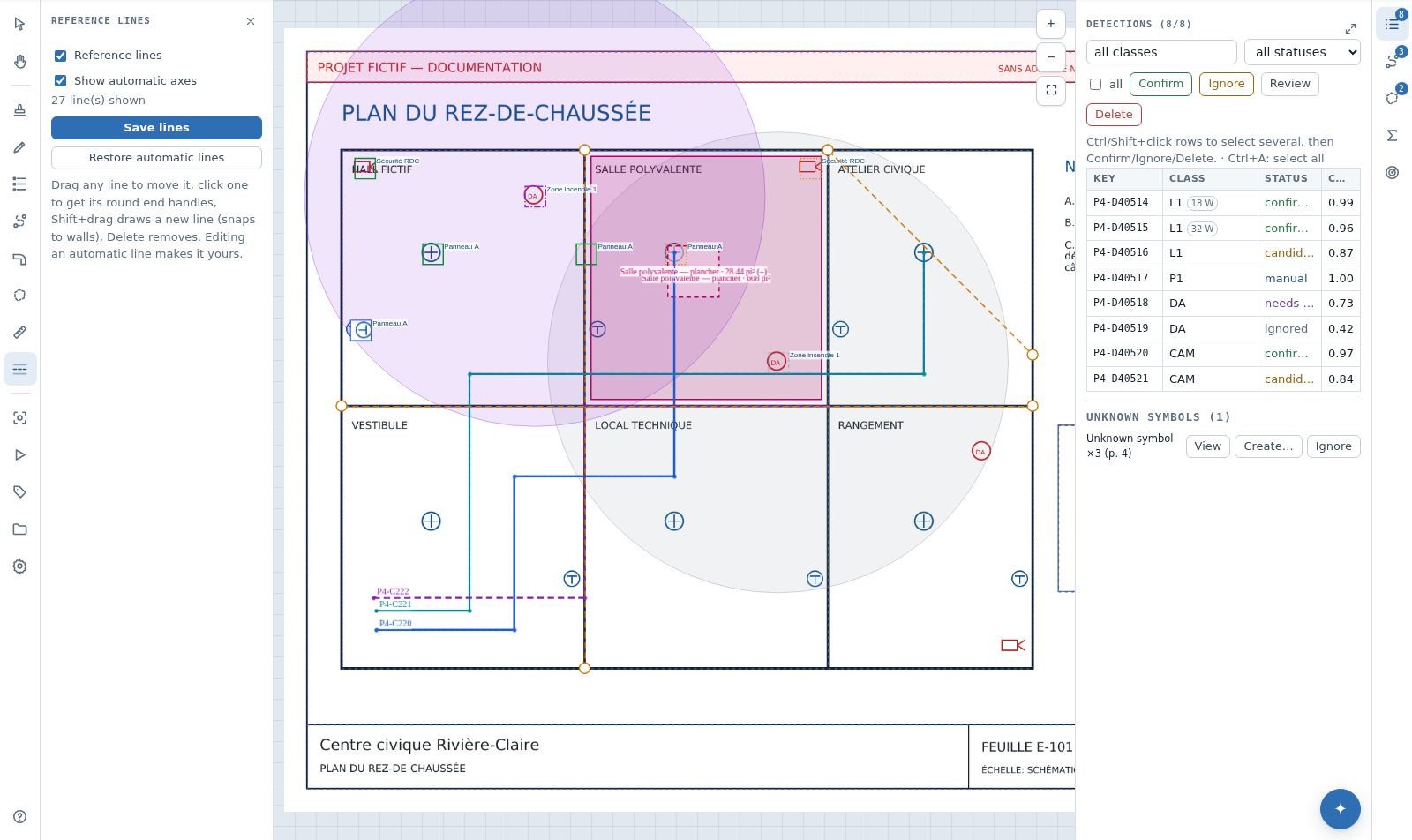
Reference-line sources
UI path: project → Plan review
Vector pages can expose automatically inferred axes from their linework. These are displayed as blue dashed lines when Show automatic axes is selected. Scanned pages may have no automatic axes.
User reference lines are stored separately and displayed as orange dashed lines. Detection and the cable/pipe tools can consume the same persisted line set; the overlay checkbox only controls display.
Review and save user lines
Permission: project editing permission.
- Select Show automatic axes.
- Choose Save lines.
- Inspect automatic axes at full-page view, including rotated wings and diagonal corridors.
- Hold
Shiftand drag on empty canvas to draw a user line. - Move a selected user line to align it with the intended wall/path axis.
- Press
Deleteto remove a selected user line. - Choose Save lines.
A new line snaps to a nearby automatic axis direction when it is within about six degrees. Otherwise it retains the direction drawn. This allows rotated reference systems rather than assuming every plan is horizontal/vertical.
Automatic lines are derived and are not edited as user records. Add a user line to correct/supplement them. If Show automatic axes is off, lines can still remain saved for routing/detection.
Use lines in cable/pipe routing
UI path: Plan review → the Cable (W) or Pipe (P) tool
In Snapping and routing:
- Snap to devices controls endpoint snapping;
- Follow wall/reference lines allows traced points to follow the shared axes;
- Snap radius controls how close the cursor must be.
Reference lines are guides, not obstructions or a computed code-compliant route. Inspect the resulting polyline and use Edit points to correct elbows.
Bulk-select detections
In Plan review:
- filter by class/status when useful;
- Ctrl/Cmd-click items, Ctrl/Cmd-drag a marquee or use table checkboxes/Select all;
- right-click one selected item or use action buttons;
- apply Confirm, Ignore, Needs review, Reclassify, Assign group, Copy, Duplicate or Delete.
Status-only changes may be available to a Reviewer. Reclassifying, grouping, moving, creating and deleting require an Editor/Project admin. If a bulk endpoint returns Forbidden, reduce the action to permitted single status decisions or ask for the correct project role.
Bulk reclassification applies one canonical class to the selection. Bulk grouping accepts a panel/zone/system label or clears it. Filters affect what Select all chooses, so read the visible count before applying a destructive action.
Copy and paste repeated layouts
- Select the complete repeated set.
- Press
Ctrl/Cmd+Cor choose Copy. - Move the cursor to the corresponding anchor in the target room/area.
- Press
Ctrl/Cmd+V, or right-click empty canvas and choose Paste here. - Inspect every pasted box; adjust and review its status.
Paste preserves relative geometry and item data but clamps boxes to page boundaries. It is designed for the current page; it is not a substitute for revision-sheet transfer. Copying already-confirmed items creates confirmed copies, so use it only where the repetition has been verified.
Undo and redo
On review and cabling canvases:
Ctrl/Cmd+Zundoes a recent local action;Ctrl/Cmd+Shift+ZorCtrl/Cmd+Yredoes it.
Typical actions include create, modify and delete. Undo state belongs to the active browser tab and is finite. Reloading, navigating away or concurrent edits can break the assumption that the last local action is still the last server state. For large bulk changes, export or record the prior state first.
Bulk work on cable/pipe runs
With a cable or pipe tool armed:
- click runs or use Ctrl/Cmd selection/marquee;
- select a Group, or right-click for bulk group/type/multiplier controls;
- use Delete selected only after checking the selected count;
- undo immediately if the local action was wrong.
A run can also be edited with draggable vertices. Double-click a segment or right-click Add point; right-click a handle to remove it. Start a branch (T) here creates a tee from a run body. Detach junction (T) pulls a connected endpoint off the body. There is no general one-click “split into two independent runs”; retrace/edit when two separately priced records are required.
Edge cases and recovery
- Reference lines look offset: confirm the page render and zoom, then add user lines; re-analysis may be appropriate for damaged vector artefacts.
- No automatic lines: scanned or unusual vector content may not expose axes; draw user lines manually.
- Wrong bulk population: use Undo before leaving/reloading, then tighten filters and retry.
- Pasted items fall at page edge: undo and paste with the cursor farther inside the sheet.
- Concurrent review: refresh before a large operation and agree on page ownership; local undo does not reverse another user's independent change safely.
Related: Review quality, Cables and pipes, Revisions.