Members, roles and invitations
PlanRelevé separates the organization role from the project role. A member belongs to one organization; an explicit share then determines what they may do in a particular project. Access controls deny by default and never expose members from another organization.
Sign-in and navigation
Sign in from the Sign in page, then use the FR / EN selector in the header. The project list is the global home; inside a project, navigation leads to the dashboard, legend, review, cabling, estimate, parts, members and assistant. See Getting started and Dashboard and pages.
Authentication may request a one-time code sent by email. A device can be trusted for 30 days. An organization can also require two-step verification or enable Microsoft Entra ID; those settings are restricted to owners and administrators.
Roles and permissions
| Level | Role | Main scope |
|---|---|---|
| Organization | Owner / administrator | Members, security, billing, storage, AI and MCP; project creation |
| Organization | Project manager | Creates projects and implicitly administers every organization project |
| Organization | Editor | Creates projects; administers projects they created; needs sharing elsewhere |
| Organization | Viewer | No implicit project; sharing required |
| Project | Viewer | View only |
| Project | Reviewer | View and confirm or ignore candidates |
| Project | Editor | Review, modify and export |
| Project | Project administrator | Editor access plus sharing |
An explicit project role takes precedence over the organization role on that project. However, owners, administrators and project managers keep implicit project-administrator access; adding a lower share cannot restrict them. Archiving also depends on the organization role.
Invite, then share a project
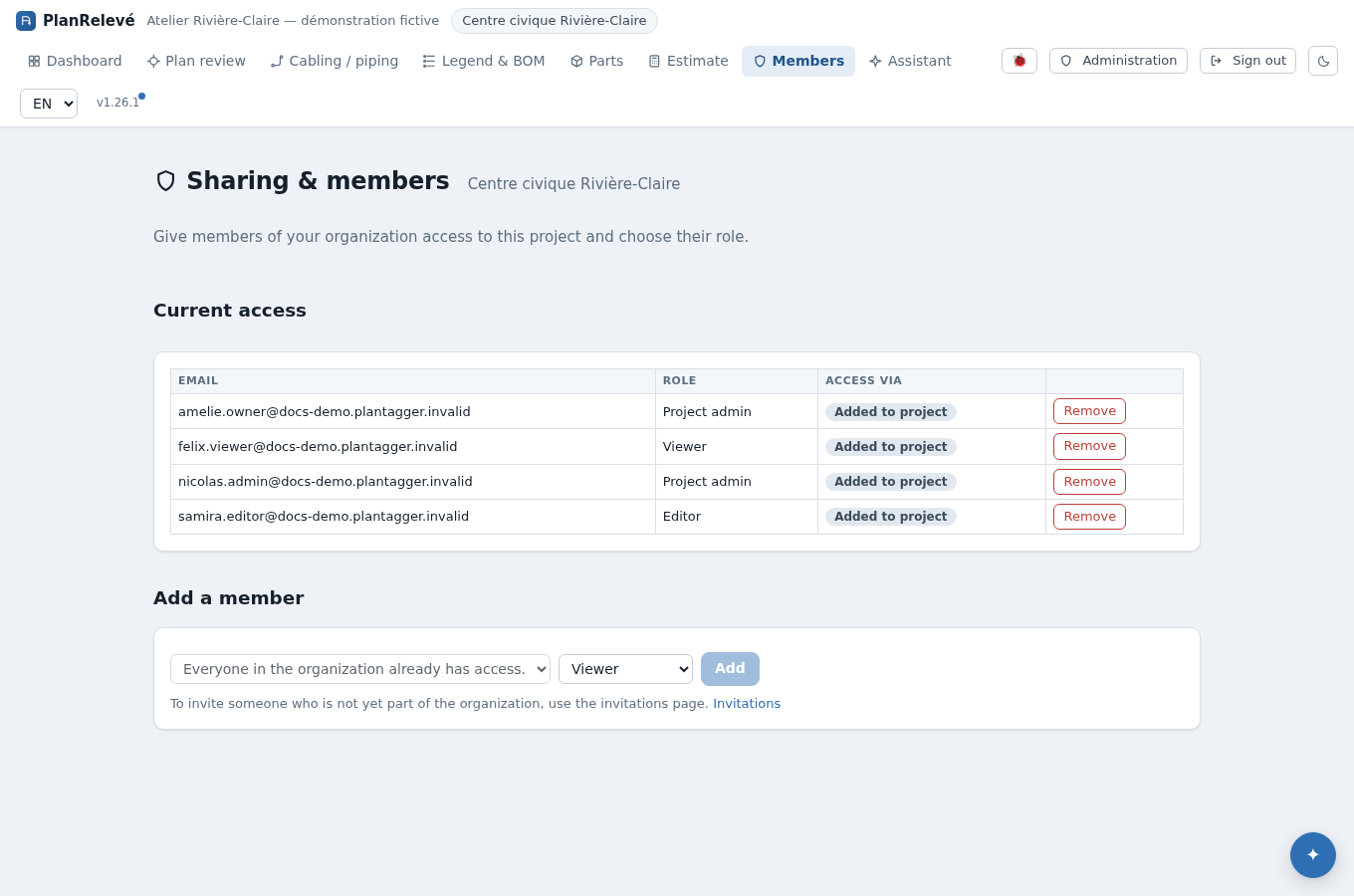
Permission required: owner or administrator to invite a member; project administrator to share that project.
- Open Administration → Invitations, enter the email address and choose the organization role. You may also associate the invitation with a project and project role.
- Send the invitation. While it is pending, an administrator may resend or revoke it; an expired link must be resent.
- After the person accepts, open the project and select Members.
- Choose the member and project role, then select Add. Current access shows the effective role and its source: explicit share, organization role or project creator.
- To change a share, remove the explicit row and add the desired role. Removing a share does not remove access inherited from an organization role.
Limits and recovery
If a member is missing from the picker, confirm that they accepted the invitation, are active and belong to the same organization. An attempt to remove your own last access is blocked. The last active owner or administrator cannot be removed or downgraded until authority is transferred.
When someone leaves, deactivate or delete the account in administration rather than removing only one project; their sessions are then revoked and their linked tokens stop working. See Security, privacy and Law 25, AI assistant and Exports for controls that continue to enforce these roles.