Review, statuses and quality
Review turns machine suggestions into controlled takeoff quantities. Treat the canvas, table, status filters and full-page population as one evidence set.
Access and roles
UI path: project → Plan review
- Viewer: can inspect plan and quantities.
- Reviewer: can make status-only decisions on existing detections.
- Editor/Project admin: can also add/delete/move/reclassify boxes, run detection and change legend examples.
A status change is a review action. Geometry, class, group, rotation, coverage, creation and deletion are edits. Bulk operations that modify fields may therefore require Editor even when a single status decision is allowed.
Status meanings
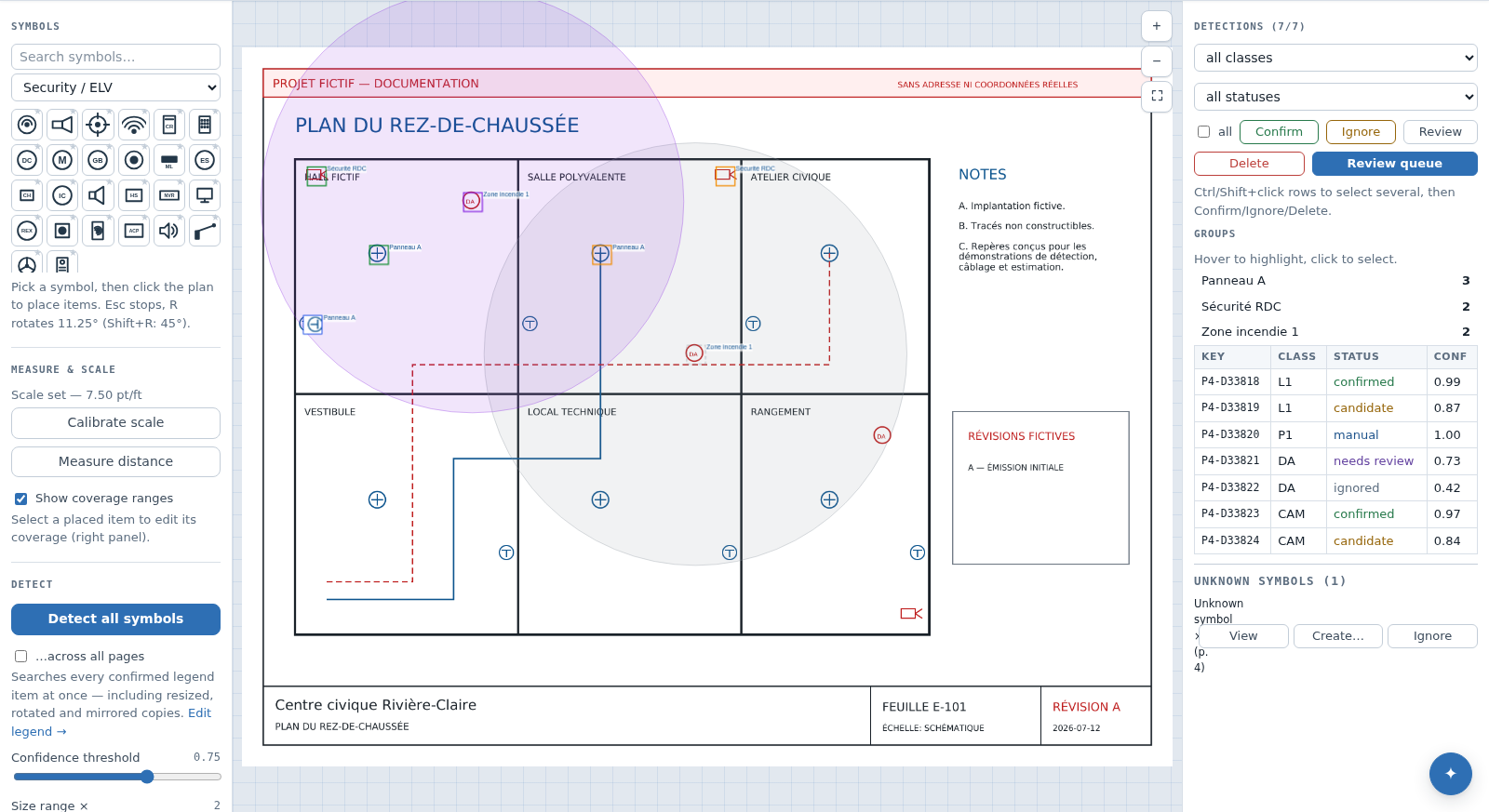
| Status | Meaning | Included in default reviewed count? |
|---|---|---|
| Candidate | automated or stamped occurrence awaiting a decision | No |
| Needs review | explicitly deferred/ambiguous occurrence | No |
| Confirmed | accepted occurrence | Yes |
| Manual | user-drawn box recorded as a direct addition | Yes |
| Ignored | reviewed false positive/out-of-scope occurrence | No |
Ignoring is usually better than deleting an automated false positive: it preserves review evidence and, for comparable current geometry scores, can contribute to conservative calibration. Delete only duplicates or records that should not remain.
Work the review queue
- Use class/status/confidence filters to define the population.
- Choose Review queue. It includes visible Candidate and Needs review rows.
- Inspect the symbol against surrounding plan context.
- Press
Cor choose Confirm for a correct occurrence. - Press
Ior choose Ignore for a false/out-of-scope occurrence. - Use right arrow/
Nto defer to the next item and left arrow/Pto go back. - Press
Escto leave the queue. - Recheck full-page and inventory totals after the queue is empty.
A queue can be empty because filters hide work. Clear filters and check candidate/needs-review totals before declaring the page done.
Pixel and population checks
Quality cannot be inferred from confidence alone. Use two complementary checks.
Pixel-level check: zoom into a sample from every class and status band. Verify the box encloses the intended symbol, not adjacent text, grid intersections or partial linework. Check rotated and crowded instances.
Population-level check: zoom out and scan the distribution. Compare repeated room types, floors and mirrored areas. Look for suspicious clusters, empty regions, duplicates at one mark and a sharp count change between similar sheets. A systematic miss can look clean one box at a time.
For high-consequence classes, sample both accepted and rejected populations and compare with an independent manual count.
Select and edit efficiently
- Click a box for one item.
- Ctrl/Cmd-click to add/remove items.
- Ctrl/Cmd-drag empty canvas for a marquee selection.
- Use the table checkbox and Select all for the visible filtered population.
- Right-click a selection for Confirm, Ignore, Needs review, Copy, Duplicate, Reclassify, Assign group or Delete.
- Arrow keys nudge selected geometry;
Shiftmoves five display points. - Drag/resize boxes directly when your role permits.
Reclassify with the searchable class picker; creating a new spelling creates a new class, so favour canonical names. Assign group is useful for panel, zone, system or alternates and appears in grouped exports.
Add omissions manually
Stamp a symbol
- Search/browse the Symbol palette.
- Choose a built-in or project symbol.
- Press
Rto rotate 11.25° orShift+Rfor 45° steps. - Click each device location.
- Exit with
Esc, then confirm the new candidate stamps.
Draw a box
- Choose an existing class or enter a custom class.
- Select Draw a box.
- Drag around the missing occurrence.
- The item is saved as Manual and enters the reviewed count.
A manually drawn box without a symbol can be turned into a project symbol from its context menu when offered.
Improve future matching from the plan
- Save selected as legend symbol requires one selected occurrence and writes a project signature/crop.
- Use as example for class keeps the class but supplements its generic legend sample.
- Find similar from selected searches from one or more verified occurrences.
- Unknown symbol suggestions groups repeated shapes to view, convert or dismiss.
After changing examples, test one page before an all-page rerun. Automated results in rerun scope are replaced; manual boxes remain.
Copy, paste and undo
Ctrl/Cmd+C copies the selected detections. Ctrl/Cmd+V pastes them near the cursor/current viewport while preserving class, relative arrangement, status, rotation, coverage and notes. Right-click empty canvas for Paste here. Use Duplicate for a nearby copy.
Ctrl/Cmd+Z and Ctrl/Cmd+Shift+Z/Ctrl/Cmd+Y undo/redo recent review-page edits. Undo history is local to the open tab and is not a substitute for revisioning or team coordination. A reload or another user's simultaneous changes can limit what can be safely reversed.
Coverage overlays
For one selected detection, the coverage panel can show a circular or sector overlay with radius/area and angle. A page scale is required for accurate drawing. Coverage is a takeoff aid, not a code/design compliance result.
Final quality gate
For every enabled sheet:
- candidate and needs-review scope is resolved or documented;
- counts include only intended confirmed/manual items;
- pixel samples and full-page populations were checked;
- groups and classes are consistent;
- manual omissions and duplicate suppression were checked;
- scale/coverage is verified where used;
- exports are generated with the intended Include candidates option.
See Detection, Reference lines and bulk editing, BOM and Exports.