Automatic detection
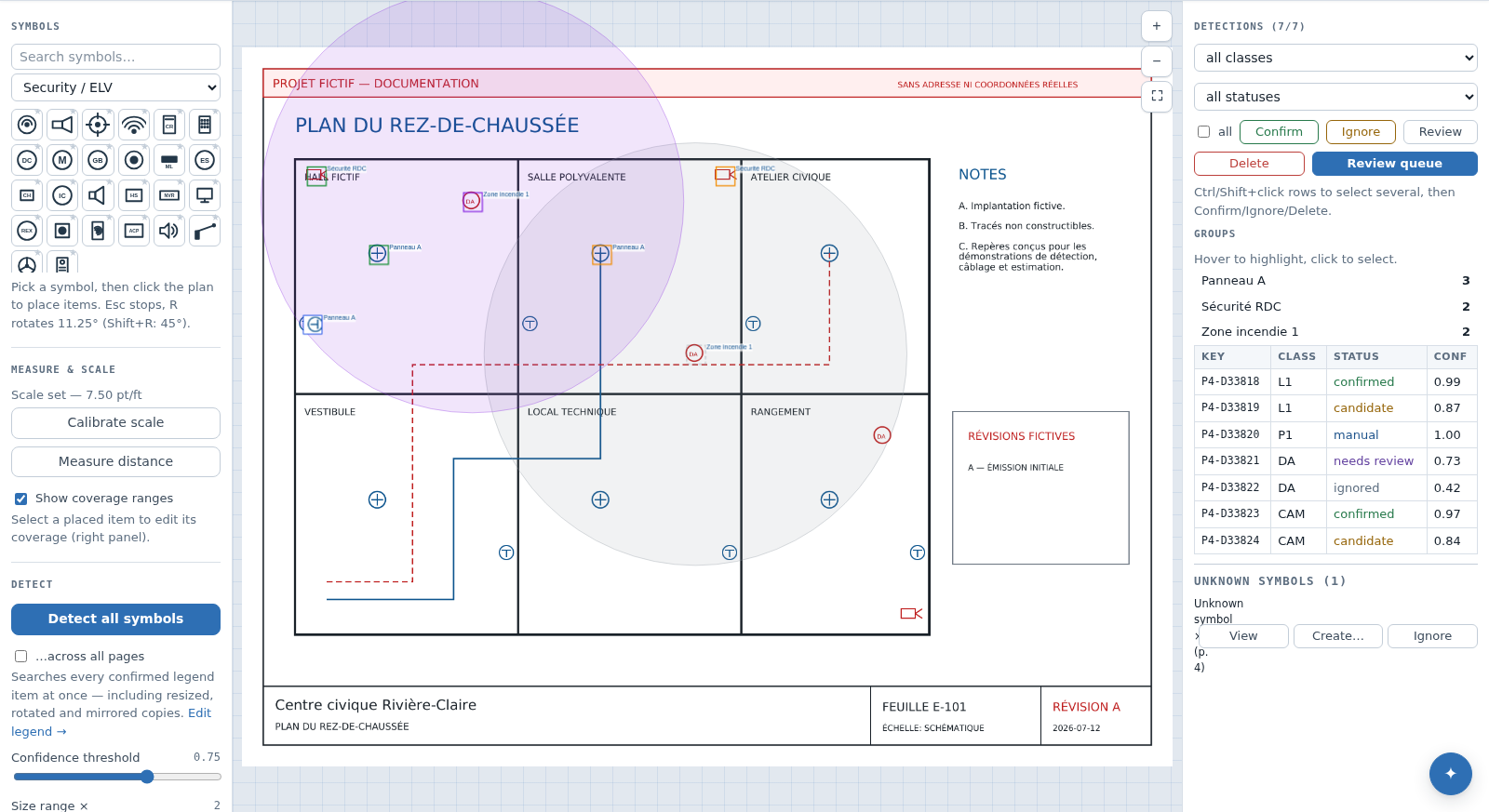
Detection searches enabled plan pages for occurrences of confirmed project classes. It creates reviewable records; it is not a replacement for estimator verification.
Prerequisites and permission
UI path: project → Plan review
To start detection or Find similar, you need project editing permission. A Reviewer can decide existing candidate statuses but cannot launch or reshape a detection run. Before running:
- enable only in-scope pages;
- create and confirm legend items with usable visual signatures/examples;
- open representative pages to verify rendering;
- coordinate with teammates because an overlapping rerun replaces prior automated boxes in its scope.
Scale is not required for symbol counts.
Choose the page scope
Clear All enabled pages to process only the current page. Select it to process every enabled page. Disabled pages are skipped and reported as such. For a first test, use one representative page; scale to all pages after classes and parameters are credible.
How mode is selected
PlanRelevé chooses compatible methods per page and symbol rather than forcing every drawing through one algorithm.
Vector geometry
On Vector + text and Vector pages, the engine compares normalized line/path geometry against the legend signature or actual exemplars. This is usually the most precise route and supports rotation/scale variations through the configured search controls.
Template matching
When a crop is available but exact geometry is not, the engine compares the visual template. This can operate on rendered vector content or raster content. Tight crops and consistent export quality matter.
Raster contour matching
On Scanned pages, contour features and templates are compared in image space. Resolution, skew, halftone noise, markups and compression can change the result. Expect more candidate review.
Text assistance
Embedded PDF text can help with relevant labels, but text alone is not proof that a graphical device exists. Text-only results stay out of geometry calibration and should be interpreted separately.
Run detection
- Leave Auto-confirm off for an unfamiliar class/project.
- Choose current page or All enabled pages.
- Start Run detection.
- Watch the global Jobs indicator or the status message. You may continue using other parts of the application.
- When complete, read the summary for created, replaced and skipped items.
- Inspect any weak classes warning; it means a class lacked enough useful visual evidence or produced little/no match population.
- Reload/inspect detections and begin the Review queue.
The rerun deletes and replaces automated detections in the selected page scope. Explicit manual boxes are preserved. If a previous automated hit was manually moved/reclassified, treat a broad rerun cautiously and export/review first.
Browser-assisted compute and server fallback
A browser with WebAssembly and Web Workers can help perform geometry scoring. The tab requests a queued task, distributes symbol targets across local workers and returns only the scores needed by the job. The native server kernel computes the same task when:
- the browser lacks required capabilities;
- local workers fail;
- the tab is closed, suspended or goes offline;
- a task claim expires before the result arrives.
This is assistance, not a requirement. Leaving the review tab open can improve throughput; closing it should cause a slower server fallback. Never interpret a slow/queued job as an instruction to start several duplicate runs.
Important controls
- Confidence filters/scopes lower-scored results; raising it can remove true and false matches.
- Geometry similarity controls strictness of shape comparison.
- Scale and Scale range allow size variation.
- Rotation steps expand orientation search; more steps cost more and can add lookalikes.
- NMS/overlap suppression prevents many boxes for the same occurrence.
- Raster threshold affects contour extraction on scans.
Change one family of controls at a time, test on one page and record the effect on both misses and false positives.
Auto-confirm
If enabled, a high-confidence result can enter confirmed directly. The requested threshold is guarded conservatively:
- PlanRelevé never treats a tie at the learned false-positive boundary as safe;
- after at least 19 comparable, current-cohort ignored geometry detections for a class, a class-specific conformal threshold can raise the effective boundary;
- the effective threshold is also kept above the configured base by a safety margin;
- text-only, manual, legacy/unversioned and cross-class rejected rows are not pooled into that calibration.
If a class lacks enough current review history, only the configured threshold applies. Calibration reduces a specific false-positive risk under exchangeability assumptions; it is not a certification of accuracy. Keep auto-confirm off for new symbols, new drawing conventions and high-consequence scope.
Find similar from selected
Use actual plan occurrences when the legend sample is generic.
- Select one or more correct boxes.
- Choose whether to search the current page or all enabled pages.
- Select Find similar (selected).
- Review the newly created population.
- If the example is broadly representative, right-click it and Use as example for class.
Examples must all be correct. A false example propagates error more efficiently than a weak legend crop.
Unknown symbol suggestions
After a run, PlanRelevé may group repeated unexplained shapes under Unknown symbol suggestions. For each group:
- View zooms to an occurrence (and can navigate to its page);
- Create class converts the group into detections under the entered class and creates project legend context;
- Dismiss removes the suggestion from the queue.
A suggestion is not proof that every repeated shape is a device. Check schedules, grid bubbles and architectural markers before converting.
When results are wrong
- Zero results: confirm the item has a signature/crop, page is enabled, mode is compatible and the crop actually occurs on that sheet.
- Weak class warning: add a clean plan-side example or redraw a tighter symbol box.
- Many duplicates: increase overlap suppression or tighten similarity.
- Rotated misses: add rotated exemplars before greatly increasing global rotation search.
- Scan misses: use a cleaner scan, adjust raster threshold conservatively or place manually.
- Job failed: note the error in Jobs, retry once on one page and contact support with project/page/job context if repeatable.
Next: Review and quality control, Reference lines and bulk editing, Troubleshooting.